How to add/edit/delete reclamation?
Add reclamation
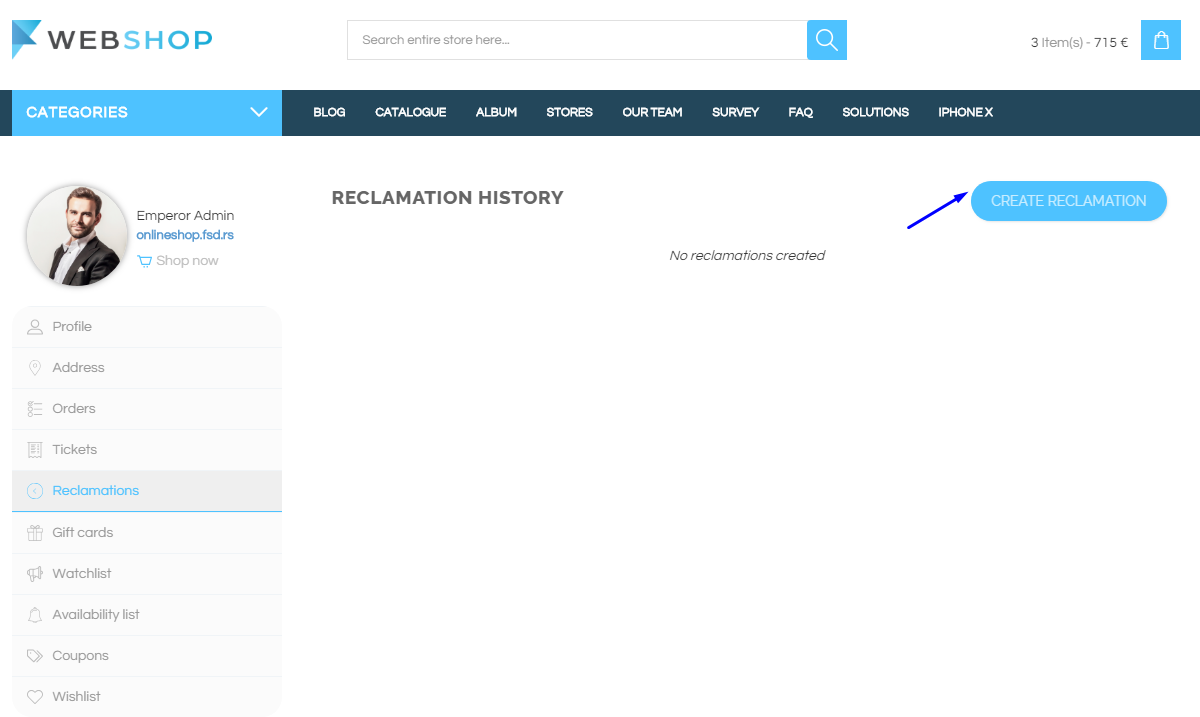
Customer has an option to create a reclamation by opening the Profile page and choosing Reclamations from menu. The Reclamation history page opens and customer can create new reclamation by clicking on the button Create reclamation.
Customer has to enter the ID of product in Product code field and to choose the order from the dropdown list.
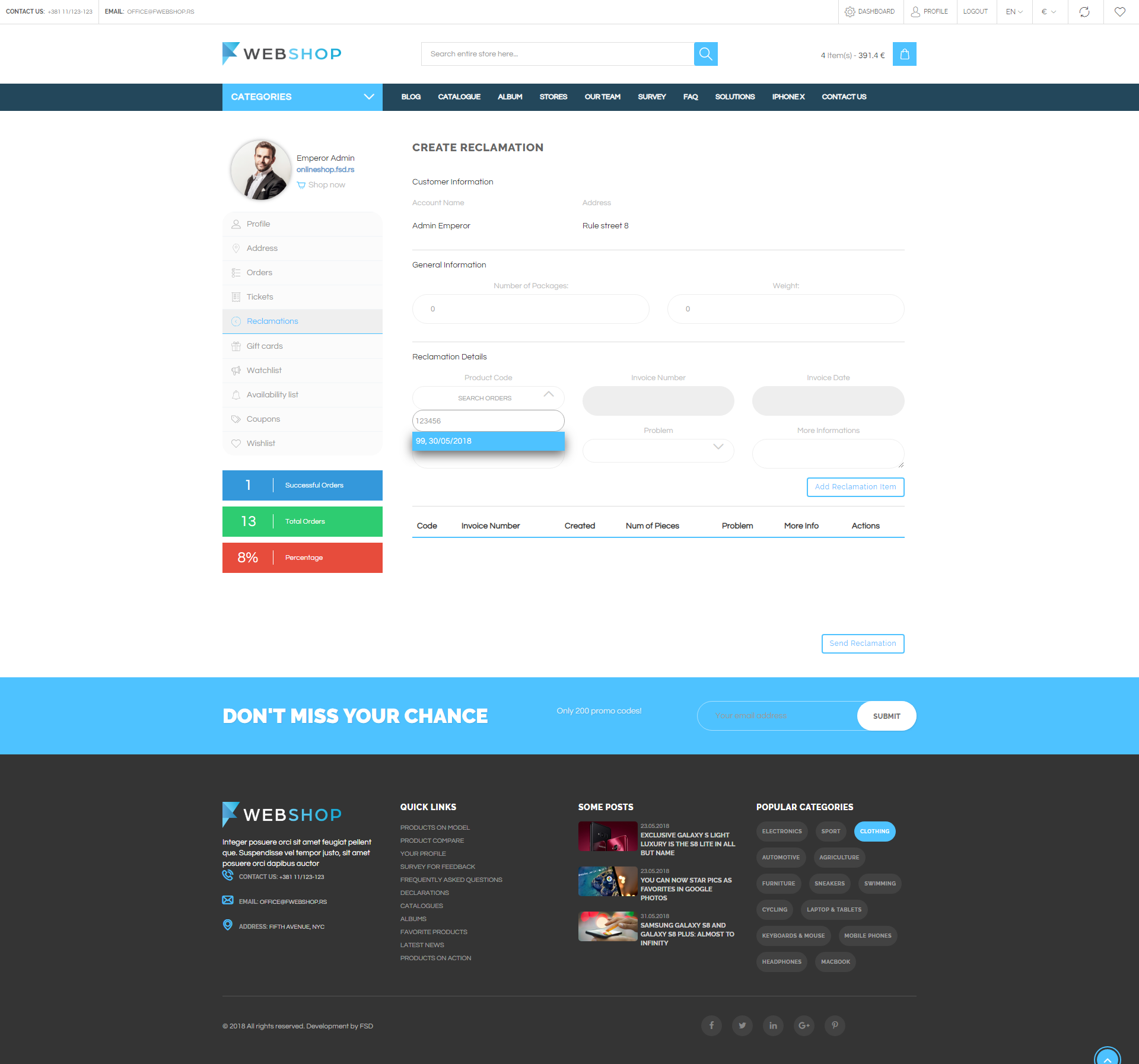
Next step is to enter the product quantity in Number of pieces field, choose the problem and click on the button Add reclamation item.
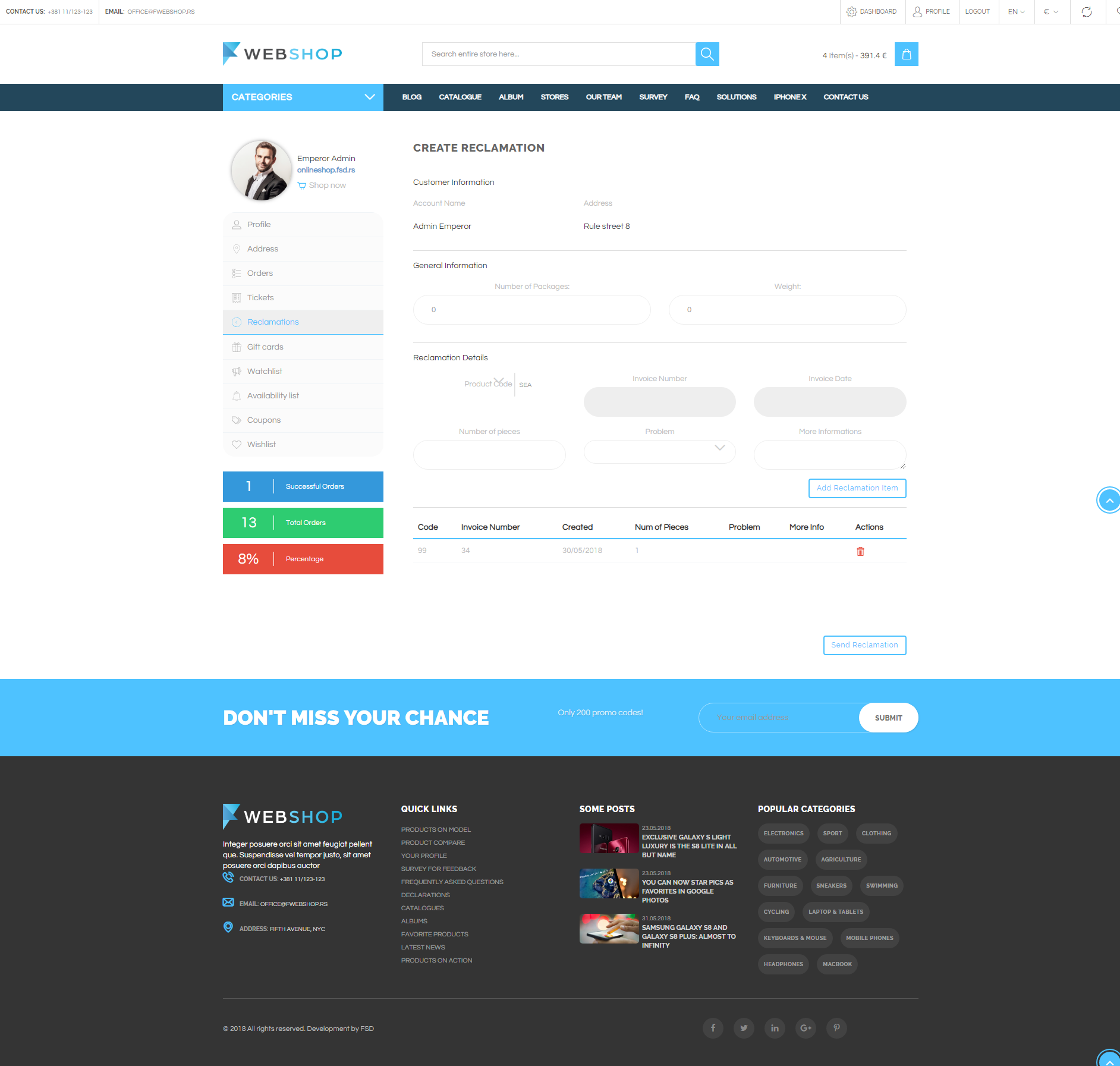
Item will be added to list. Admin can add more items, repeating the following steps. When he/she add all items in the list, by clicking on the button Send reclamation reclamation will be sent.
All reclamations
Admin user can see all reclamations by choosing the menu CRM/Reclamation/All. Also, Admin can change the settings for reclamation choosing from the menu Settings/General settings and clicking on the User settings tab.

Edit reclamation
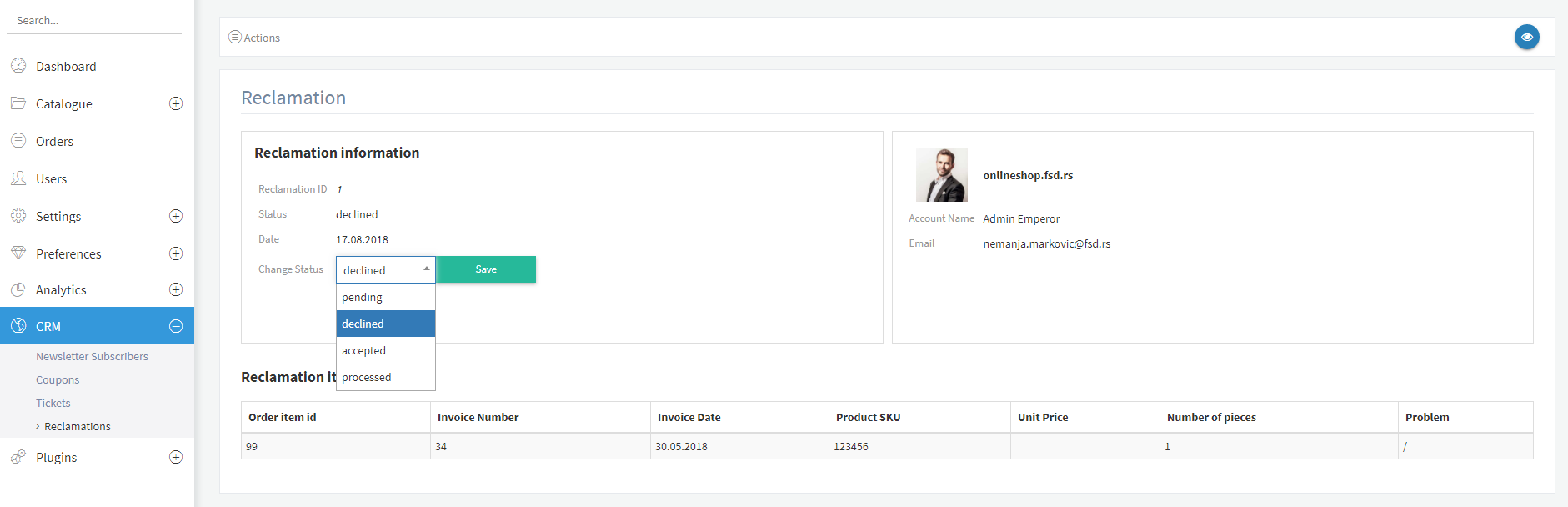
By clicking on button for editing in the list of all reclamations, Edit reclamation page opens. Admin user can change the status of reclamation, choosing one from the dropdown list - Declined, Accepted, Processed. Also, on this page, he/she can see the detail of reclamation (Order item ID, Invoice number, Invoice date, Product SKU, Unit price, Number of pieces and Problem).
Delete reclamation
Admin user can delete reclamations. It can be done one by one, but also by selecting multiple reclamations and clicking on button for delete in the bottom of the page.
